
Cell service fails more often than most phone advice admits. Basements, metal buildings, rural properties, mountain roads, and even ordinary neighborhoods with thick walls can drop a connection without warning. When that happens, a navigation app that needs live data becomes a blank screen. Field workers, landscapers, and anyone who drives between appointments learn this the hard way. The practical fix is simple: save the maps you need before you leave coverage.
I started doing this years ago after a service call in a canyon outside Spokane. The address looked clear on the phone while I still had signal. Ten minutes later the map froze, the blue dot vanished, and I was guessing which dirt road led to the customer’s place. That extra driving cost time and a second trip the next day. After that I began downloading the areas I expected to work in before the day started. The habit has saved more appointments than any new app.
Why Offline Maps Matter More Than Live Updates
Live maps feel modern. They show traffic, road closures, and real-time rerouting. Those features are useful when the signal is strong. They become liabilities the moment the phone loses connection. An offline map does less, but it keeps working. For most field days the trade-off is worth it.
A technician who arrives at a job with a pre-saved map can still find the correct driveway, mark the location for a return visit, or navigate back to the main road without searching for a bar of signal. The same applies to fishing spots, trailheads, or rural tool pickups. The goal is not perfect data. The goal is enough information to finish the task and get home.
Common Places Where Signal Disappears
Certain locations reliably kill coverage. Basement mechanical rooms, metal-roofed warehouses, dense tree cover, river canyons, and newer subdivisions built in low-lying areas all create dead zones. Even city neighborhoods with concrete and steel can drop a connection long enough to freeze a live map. Treating these places as exceptions leads to repeated delays. Treating them as normal leads to better preparation.
Battery and Data Costs of Constant Live Maps
Keeping maps in live mode drains the battery faster and uses more data. On a long day with multiple stops that cost adds up. An offline map uses far less power once it is downloaded. The phone only needs to track location, not pull new tiles continuously. For anyone who already watches battery percentage between jobs, the difference is noticeable.

How to Download Offline Maps on Common Phones
The exact steps differ slightly between Google Maps and Apple Maps, but the principle is the same. Choose the area, download it while you still have signal, and confirm it is available offline before you leave.
Google Maps Offline Areas
Open Google Maps while connected. Search for the city, neighborhood, or larger region you need. Tap the name or address at the bottom, then choose the option to download offline maps. Adjust the square or rectangle so it covers the streets and properties you expect to visit. Download while on Wi-Fi if possible to avoid data charges.
Once the download finishes, the area appears under the offline maps section. You can update it later when you have signal again. I usually download a slightly larger area than I think I need. Roads change and customers give approximate directions. Extra coverage costs little and prevents another download later.
Apple Maps Offline Maps
Apple Maps also supports offline downloads on recent iOS versions. Search for the location, tap the place card, and look for the download option. Select the area and confirm. The maps stay available even when the phone is in airplane mode or has no service.
Both systems let you manage storage. Large offline areas take space, so delete older downloads when they are no longer needed. A few well-chosen regions for the week usually fit without trouble.
Practical Timing for Downloads
The best time to save maps is the night before or early in the morning while still on home or shop Wi-Fi. Waiting until you are already on the road risks using mobile data or discovering the download failed after coverage is gone. I keep a short list of recurring service areas and update them every week or two. Seasonal fishing spots and new customer neighborhoods get added as needed.
What to Save Beyond the Basic Map
A street map is the foundation. A few extra pieces of information make the offline version more useful.
Save specific addresses or pins for the day’s appointments when possible. Screenshot or note the customer’s gate code, parking instructions, or landmark descriptions while you still have signal. Those details often matter more than the exact GPS point once you arrive.
If the job involves multiple stops, download a region that covers the entire route rather than single points. A continuous area lets you navigate between jobs without needing a new connection each time.
For remote work or fishing, include the last reliable cell tower location or a known return road. Knowing where signal returns helps plan the exit if something goes wrong.
Testing the Offline Map Before You Rely on It
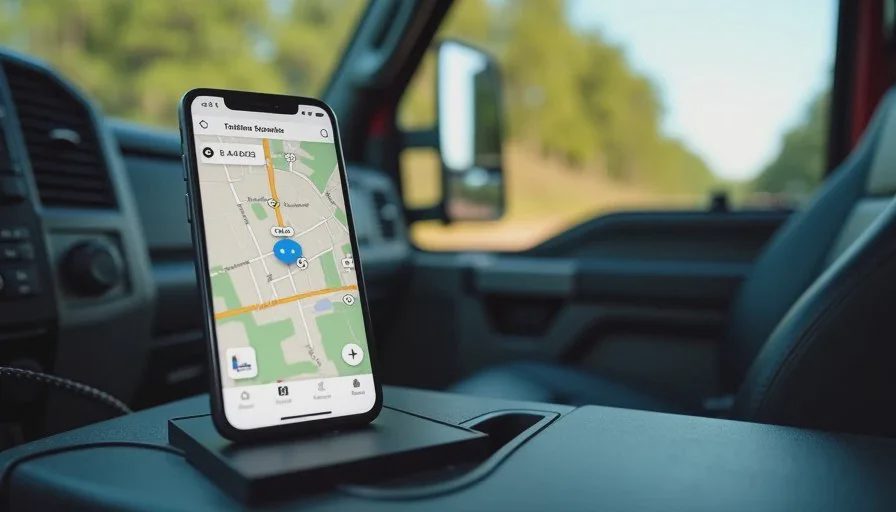
Downloading is only half the job. Confirm the map actually works without signal. Put the phone in airplane mode and open the offline area. Zoom, pan, and search for a known address. If the map loads and location tracking still functions, it is ready.
I do this quick check the night before any day that includes unfamiliar or rural stops. It takes less than a minute and has prevented more than one frozen screen on the side of a road.
Also check storage. A full phone can fail a download even when signal is strong. Clearing a few old photos or unused apps frees the space needed for the maps.
Limitations You Should Expect
Offline maps are not perfect. They do not show live traffic. Road closures that happened after the download will not appear. Some business listings and reviews stay incomplete. Turn-by-turn voice directions may be limited depending on the app and settings.
These limits are acceptable for most field work. The alternative is a blank screen and a guess. When live data is critical, plan a short stop in coverage to update the map before entering the dead zone again.
Cold weather and low battery still affect the phone even with offline maps. Keep a power bank in the truck and protect the device from extreme temperatures. The map cannot help if the phone has already shut down.
Building the Habit into the Daily Routine
The value appears when saving maps becomes automatic rather than an afterthought. I treat it the same way I treat checking the spare tire or packing the receipt bag. It is part of the morning preparation, not an extra task.
On days with multiple rural or basement jobs I expand the download area. On ordinary city routes a smaller neighborhood set is enough. Seasonal changes matter too. Winter roads and summer construction both benefit from fresher offline coverage.
Over time the habit reduces the number of moments when the phone becomes a problem instead of a tool. That is the real measure. A map that still works when the signal is gone helps you make one less unnecessary trip and keeps the schedule closer to the plan.
Cell service will continue to fail in the places where field work actually happens. Preparing the maps ahead of time does not eliminate the problem. It simply removes one more source of delay when the connection disappears. The steps are straightforward. The payoff shows up on ordinary workdays when the next address is still visible on the screen and the truck can keep moving.


No comments yet — be the first to share a thought.