
A customer is waiting, the address is buried in a text thread, and the part number is on a piece of paper back at the shop. A work order app can put those details in one place, but only if it fits the way you actually work. For a small home-service business, start with Jobber or Housecall Pro; for maintenance teams tracking equipment and recurring repairs, look at MaintainX. If you run a handful of jobs yourself, a shared calendar and a simple job form may be enough.
Pick the right kind of work order app
Jobber is worth a look for small service businesses that want to organize appointments and customer-facing work in one system. Housecall Pro is another option for home-service operators who want to connect dispatching and job management with business tasks such as invoicing. Compare the features included in each plan rather than assuming every tool shown on the website comes with the lowest-priced subscription.
MaintainX is a different starting point: consider it if your work revolves around maintaining equipment or facilities, with work orders tied to assets and recurring maintenance. That may be useful for a shop or property maintenance crew, but more structure than a solo cleaner needs.
These are starting points, not interchangeable picks. Before signing up, write down the three things that cause the most missed calls or repeat trips. Maybe it is assigning jobs, recording parts, or getting a completed ticket back to the office. Choose the tool that fixes those first.
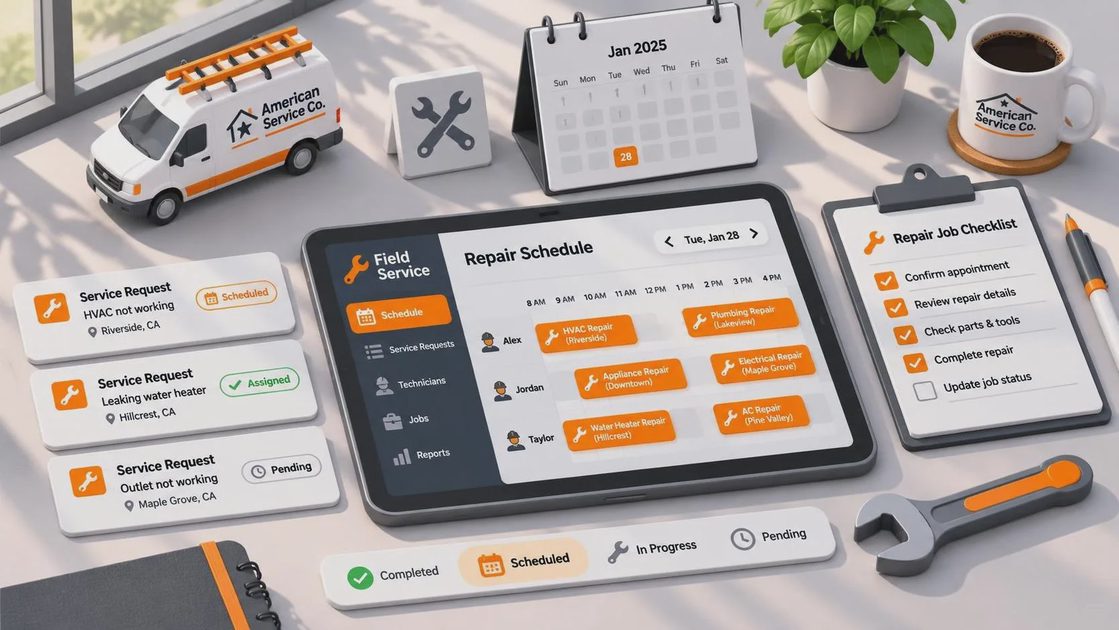
A work order app should answer five questions without a scavenger hunt: where is the job, what needs doing, who is assigned, what happened on site, and what comes next? If a technician has to open several screens just to find the gate instructions, the setup needs work.
Build a job record your crew will actually use
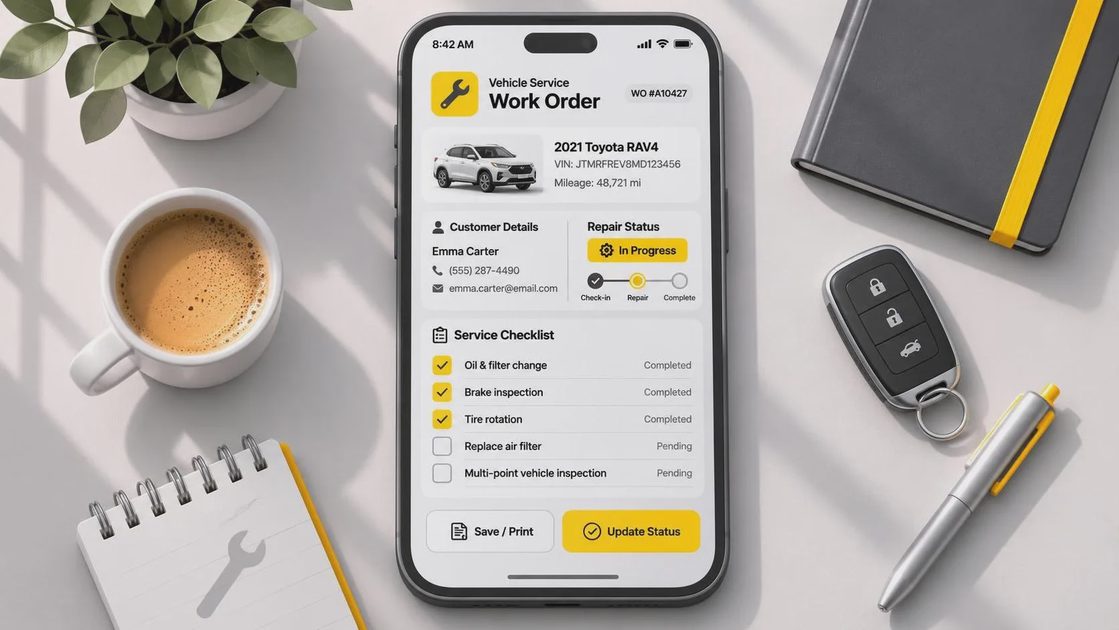
Start with the basics: customer name, service address, contact number, appointment window, assigned worker, and a short description of the problem. Add equipment details and a model or serial number when they matter to the job. A photo of a damaged component or equipment label can save a return visit, provided the image is clear enough to read.
Give each job a small set of statuses, such as scheduled, in progress, waiting for parts, and complete. Decide what each status means before the crew starts using it. In particular, “complete” should tell the office whether the work is finished or merely whether the technician has left the property.
For repeat maintenance, check whether the work order app supports the schedule and checklist you need. A checklist can catch a forgotten filter or inspection step, but twenty required fields for a ten-minute visit will encourage rushed entries. Ask the people doing the work which details are worth collecting.
If customers need to approve a quote or sign off on completed work, walk through that step during a trial. Find out what the customer receives, whether a signature is optional, and where the record goes afterward. A signature field alone does not settle every contract or warranty question.
Check weak-signal behavior before you commit
“Mobile app” does not automatically mean “works offline.” Some tools may let you view previously loaded jobs without service but restrict edits, photos, or uploads. Others may need a connection for much of the workflow. Confirm the specific behavior for the app, device, and subscription you are considering.
Try a realistic signal test. While connected, open a sample job and let its details load. Turn on airplane mode, then see whether you can reopen the job, add a note, change its status, and attach a photo. Reconnect and check whether those changes appear in the office account. Do not use a real customer's private details for the test.
Also ask what happens if two people edit the same ticket before a phone reconnects. A sync conflict at the end of the day is better than silently losing a parts note. If the app cannot handle your usual coverage, keep a paper job sheet or another approved backup and decide who enters it later. Avoid leaving customer information on loose paper in an unlocked truck.
A long day of photos, navigation, and screen time can drain a phone. Keep a charging cable in the vehicle, and make sure the crew knows how to reach the office if a device dies. A work order app is not much help if nobody has the next address or a callback number.
Count the full cost, not just the monthly headline
Subscription prices and plan features change, so compare the current checkout terms. Look at the number of users included, whether office staff need paid seats, and whether useful features require a higher tier. Also check setup charges, annual commitments, cancellation terms, and the cost of adding another technician during a busy season.
Payment processing is a separate question. If you want customers to pay from an invoice, review transaction fees and any hardware costs. If you already use accounting software, confirm what actually syncs: an integration might transfer invoices but not every customer note, photo, or payment detail.
Multiply the subscription by twelve and compare it with the time it should save over a year. Then consider the less obvious bill: entering old customer records, training the crew, and correcting duplicate jobs while everyone learns the system. A cheaper tool that people use consistently can beat an elaborate platform that becomes another task for the office.
Protect customer details and keep an exit route
Give each worker an individual login rather than sharing one password. Use a strong, unique password and turn on multifactor authentication when the service offers it. Limit access to the information each role needs, and remove access promptly when someone leaves. A screen lock matters too, especially on a phone that visits customer homes all day.
Keep sensitive details out of free-form notes when they are not necessary. A technician may need a gate instruction, but a permanent record of a customer's alarm code deserves a much harder look. Check who can see uploaded photos, how long the service retains them, and whether images also remain in the phone's camera roll.
Before moving the whole business into a work order app, find out how to export customer records and job history. Ask whether photos and attachments come with the export and whether access continues after cancellation. Run one sample job from scheduling through completion, then ask the crew what slowed them down. If the tool makes the next job easier to find and the finished ticket easier to close, it has earned a longer trial.


No letters yet — be the first to write.